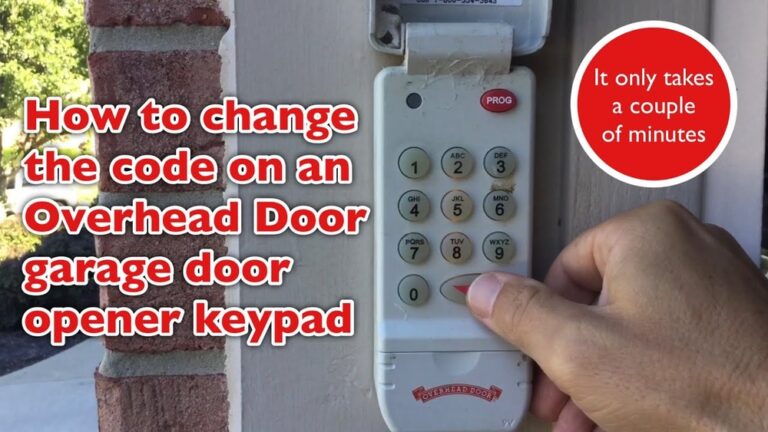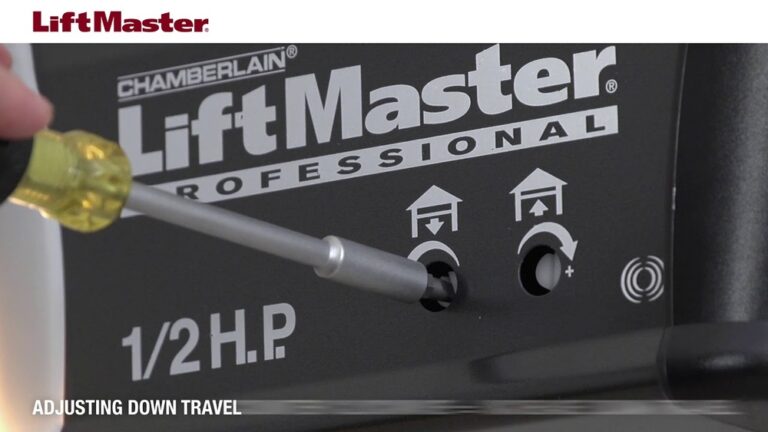

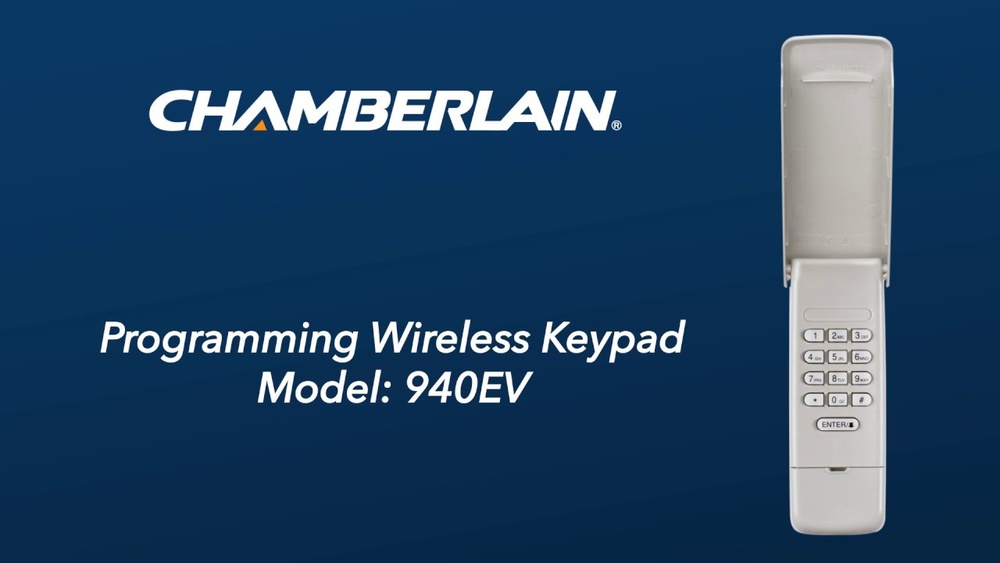
Chamberlain Garage Door Keypad Programming
Getting your Chamberlain garage door keypad working can save you time and add security to your home. With a keypad, you don’t need to carry remotes or keys. Instead, you just type in a PIN to open or close your garage. Many homeowners want to program their keypad but worry about making mistakes. The good news: it’s not as hard as it seems. With the right steps, you can set up or reset your keypad in minutes—even if you’re new to garage door openers.
This guide will walk you through everything a beginner needs to know. You’ll learn how to program, reset, and troubleshoot your Chamberlain keypad. We’ll also cover security tips, common problems, and what to do if your keypad stops working. By the end, you’ll feel confident handling your garage keypad like a pro.
Why Use A Chamberlain Garage Door Keypad?
A garage door keypad gives you flexible and secure access. Here are key reasons homeowners choose this system:
- No need for a remote: Open your garage even if you forget your remote or keys.
- Multiple users: Family members can enter using their own PINs.
- Temporary access: Give friends or workers a code without sharing your main key.
- Extra security: Many Chamberlain keypads use rolling codes, which change each time you use them.
If you want simple, secure access to your garage, a keypad is a smart choice.
Types Of Chamberlain Keypads
Chamberlain offers several keypad models. Most work in a similar way, but some steps can differ. Here’s a quick look at common types:
| Model | Features | Compatibility |
|---|---|---|
| 940EV | Backlit keys, temporary PIN, weather-resistant | Most Chamberlain/LiftMaster openers (after 1993) |
| 940ESTD | Easy battery change, one-touch close | All Security+ openers |
| 940D | Basic design, simple programming | Older Chamberlain openers |
If you’re not sure about your model, check the back of the keypad or your garage opener manual.
What You Need Before Programming
To avoid frustration, gather these items:
- Step ladder (if your opener is mounted high)
- Your keypad (and its battery installed)
- Access to the garage door opener motor (inside your garage)
- A working garage door opener (test it with your wall button or remote)
If you have a new keypad, install the battery first. For most models, this is a 9-volt battery.
Step-by-step: How To Program A Chamberlain Garage Door Keypad
Programming your keypad is easy once you know the sequence. Here’s a beginner-friendly guide:
1. Find The Learn Button
- Look for the Learn button on your garage door opener’s motor unit (usually on the ceiling).
- The button is often near the wiring terminals.
- It may be yellow, purple, orange, or red, depending on your opener model.
Tip: If you can’t find it, check your opener’s manual or look for a small “Learn” label.
2. Clear Previous Codes (if Needed)
If your keypad was used before, clear any old codes:
- Press and hold the Learn button until the indicator light turns off (about 6-10 seconds).
- This erases all remote and keypad codes from the opener.
Warning: This step removes access for all existing remotes and keypads. You’ll need to reprogram them.
3. Enter Programming Mode
- Press and release the Learn button. The indicator light will glow steadily for 30 seconds.
- Go to your keypad quickly (you have 30 seconds).
4. Enter Your New Pin
- On your keypad, enter a 4-digit PIN of your choice.
- Press and hold the Enter button until you hear a click or see the opener’s light flash.
In most cases, this means the keypad is now linked.
5. Test The Keypad
- Wait a few seconds.
- Enter your PIN and press Enter on the keypad.
- The garage door should open or close.
If it works, you’re done. If not, repeat the steps, making sure you press each button firmly.
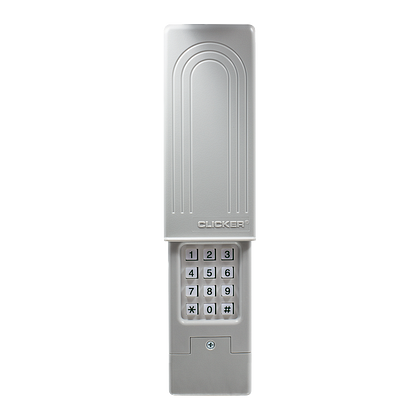
Credit: www.chamberlain.com
Example: Programming A 940ev Keypad
Let’s see how this works with a popular model:
Suppose you have a Chamberlain 940EV and a yellow Learn button.
- Climb a ladder and press the yellow Learn button.
- The light next to the button turns on.
- Go to your keypad and type 1234, then press and hold Enter.
- The opener light flashes, confirming the code is set.
- Test your PIN by opening the door.
This process usually takes less than 5 minutes.
Common Programming Variations
Some openers use a two-button sequence (Learn + Enter, then Learn + 0). Read your keypad instructions carefully.
For newer Security+ 2.0 models:
- Enter your PIN.
- Press Enter.
- Press and release the Learn button.
- Go back to the keypad and press Enter again.
Always check your manual for special steps.
How To Reset Or Change Your Keypad Code
Want to set a new PIN? You don’t have to erase everything. Here’s how to change your code:
- Press and hold the # button until the keypad stops blinking.
- Enter your current PIN.
- Press and release the button*.
- Enter your new 4-digit PIN.
- Press Enter.
Test your new code. If it doesn’t work, repeat these steps or consult your manual.
Adding Temporary Or Guest Pins
Chamberlain keypads let you add temporary PINs for guests, workers, or deliveries. These can expire after a set time or number of uses.
Here’s how:
- Press and hold the button* until the keypad lights up.
- Enter your main PIN.
- Press the # button.
- Enter the guest PIN.
- Press Enter.
Some models let you set how many times the code works (for example, 4 times). Check your manual for details.
Troubleshooting: If Programming Fails
Sometimes the keypad won’t program, or the door won’t respond. Here’s what to check:
- Weak battery: Replace with a new 9V battery.
- Out of range: Move closer to the opener.
- Wrong Learn button color: Make sure you’re following the right steps for your opener type.
- Dirty keypad: Clean with a soft cloth—dirt can block the buttons.
- Signal interference: Wireless devices or LED bulbs near the opener can cause problems.
If you try several times with no luck, reset the opener by unplugging it for 10 seconds.
Security Tips For Your Keypad
Keeping your garage secure is important. Here are some practical tips:
- Choose a unique PIN: Avoid easy codes like 1234 or your address.
- Change your code regularly: Every 6-12 months is a good habit.
- Delete old or unused codes: This keeps your access list clean.
- Shield your keypad from view: Install it where passersby can’t see you enter your PIN.
- Check battery twice a year: A dead keypad battery can leave you locked out.
Most Chamberlain keypads use rolling codes to prevent hackers from copying your signal. Still, regular maintenance keeps your home safer.
Chamberlain Keypad Vs. Remote: Which Is Better?
Many people wonder if a keypad is better than a remote. Here’s a simple comparison to help you decide:
| Feature | Keypad | Remote |
|---|---|---|
| Access method | PIN code | Button press |
| Number of users | Multiple (unique PINs) | Usually 1 per remote |
| Security risk | PIN guessed | Lost/stolen remote |
| Battery life | 6-12 months | 1-2 years |
| Weatherproof | Yes | No (usually kept in car) |
Key insight: A keypad is ideal for families and frequent guests. Remotes are better if you want fast, single-person access.
Real-world Data: How Often Do Keypads Fail?
According to consumer studies, about 1 in 20 keypads (5%) fail in the first 2 years. The main reasons are:
- Old batteries (60%)
- Water damage (15%)
- Worn-out buttons (10%)
- Signal interference (10%)
- Programming errors (5%)
Tip: Most failures are simple to fix—replace the battery or reprogram the keypad.

Credit: firstlinegarage.com
Keypad Maintenance And Care
To keep your keypad working smoothly:
- Clean the keypad monthly: Use a soft, dry cloth.
- Check for cracks: Seal or replace if you see damage.
- Change the battery every 6-12 months.
- Test your code monthly to spot issues early.
If you live in a rainy or snowy area, install a small cover above the keypad.
When To Replace Your Keypad
If your keypad is over 10 years old, consider replacing it if:
- Buttons don’t respond, even after cleaning.
- The keypad gets water inside.
- You want new features, like app control.
Modern Chamberlain keypads are more secure and weather-resistant.

Credit: www.youtube.com
Advanced Features: Smart Keypads And App Control
Newer Chamberlain systems support smart keypads. These connect to Wi-Fi and let you control your garage from your phone.
Benefits include:
- Open/close from anywhere
- Get alerts when the door is used
- Add/remove PINs using an app
If you want more control, look for Chamberlain openers with myQ technology. Learn more about smart garage systems from the official Chamberlain website.
Frequently Asked Questions
How Do I Program A Second Chamberlain Keypad?
You can add a second keypad by repeating the programming steps with your new keypad. Each keypad can have its own PIN. Just press the Learn button and enter the new PIN on the new keypad.
My Keypad Won’t Light Up. What Should I Do?
Check and replace the battery first. If the keypad still doesn’t light up, clean the contacts or check for water damage. If it’s an old unit, you may need a replacement.
How Secure Are Chamberlain Keypads?
Chamberlain keypads use rolling codes, making them very secure. Change your PIN regularly and avoid easy-to-guess numbers for extra safety.
Can I Use The Same Keypad With Two Garage Doors?
Some Chamberlain keypads support two-door systems. Check your model’s manual. For most, you need a separate keypad for each opener.
What If I Forget My Pin?
Reset the keypad by pressing and holding the Learn button on your opener, then reprogram a new PIN. You can also check your manual for model-specific reset steps.
A well-programmed Chamberlain garage door keypad adds both convenience and security to your home. With these simple steps and tips, you’ll have reliable access for years to come.