
Chamberlain Garage Door Opener Programming
A Chamberlain garage door opener is a device that makes opening and closing your garage door much easier. Many homeowners choose Chamberlain for its reliability and smart features. But programming your opener, remote, or keypad can feel confusing—especially if you’re new to this. This guide will help you understand the process, step by step, with simple instructions and practical examples. You’ll also find tips to solve common problems and useful data for different models. Whether you want to add a new remote, reset your keypad, or connect to Wi-Fi, this article covers everything you need to know.
Understanding Chamberlain Garage Door Openers
Chamberlain has been a leader in garage door openers for decades. Their products are known for:
- Durability
- Smart technology (Wi-Fi features)
- Safety sensors
Most Chamberlain openers come with:
- A motor unit mounted on the ceiling
- Safety sensors at the bottom of the door
- A wall-mounted control panel
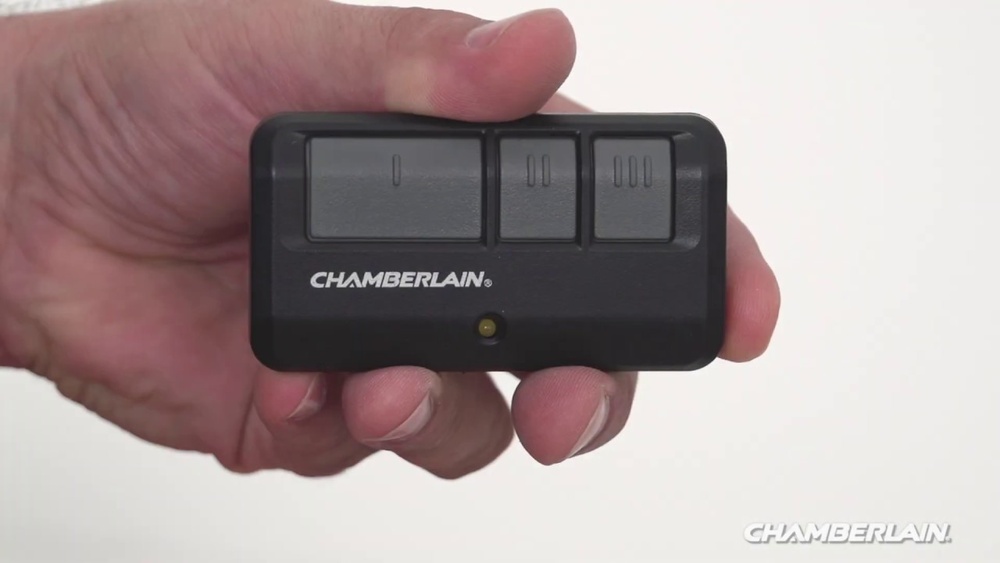
- Remote controls
- Sometimes a keypad
There are three main types:
- Chain drive: Strong and affordable, but a bit noisy.
- Belt drive: Quieter, ideal for garages next to living spaces.
- Smart openers: Connect to your home Wi-Fi for smartphone control.
Here’s a quick comparison:
| Type | Noise Level | Price Range | Smart Features |
|---|---|---|---|
| Chain Drive | High | $150-$250 | Optional |
| Belt Drive | Low | $200-$350 | Optional |
| Smart Opener | Low | $250-$450 | Standard |
Why Programming Matters
Programming your Chamberlain opener is important for:
- Security: Prevents unauthorized access.
- Convenience: Lets you use remotes and keypads easily.
- Integration: Connects to smart devices and apps.
Many problems happen because the opener isn’t programmed correctly. For example, you might:
- Get stuck outside if your remote stops working.
- Lose access if you forget your keypad code.
- Have trouble connecting to your Wi-Fi.
Programming solves these issues and keeps your garage safe.
Credit: www.youtube.com
Getting Started: What You Need
Before you start, gather these items:
- The garage door opener manual
- All remote controls you want to program
- The keypad (if you have one)
- A small ladder (to reach the opener unit)
- Pen and paper (to note codes)
If you lost the manual, you can find instructions on the Chamberlain website. The model number is usually on the motor unit.
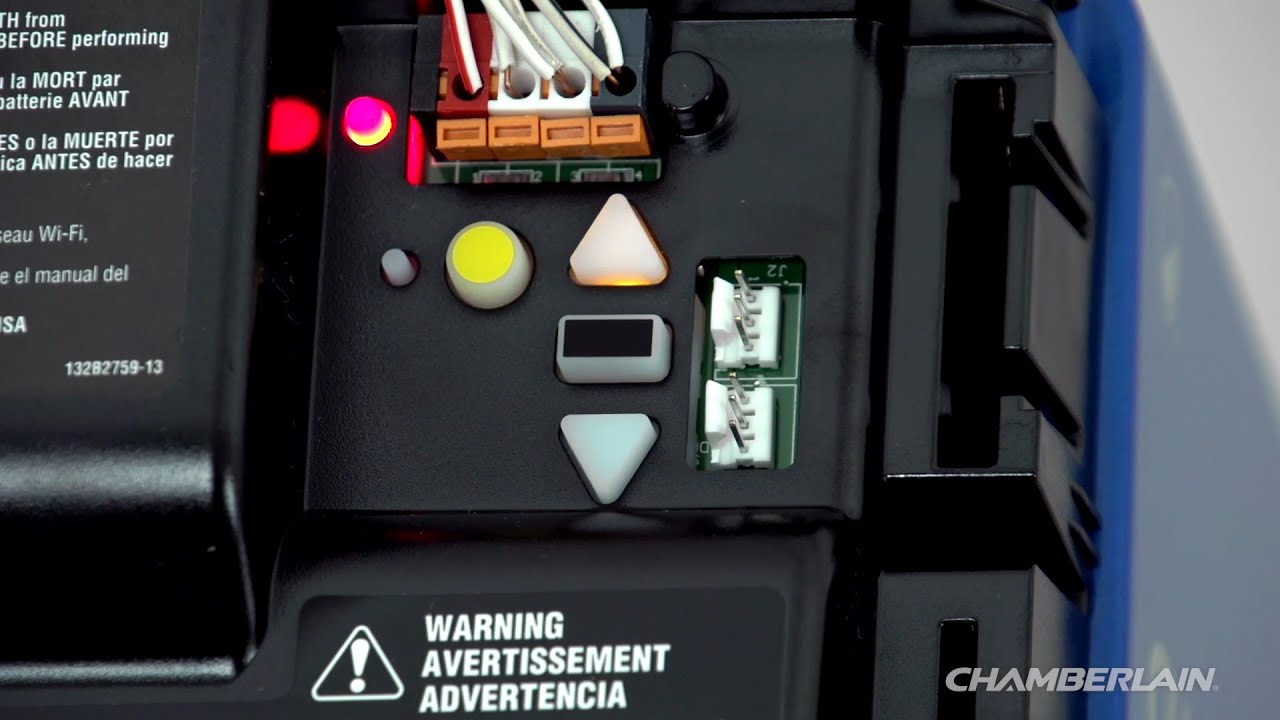
Pro tip: Check the color of the “Learn” button on your opener. It’s often red, yellow, green, or purple. The color affects how you program remotes and keypads.
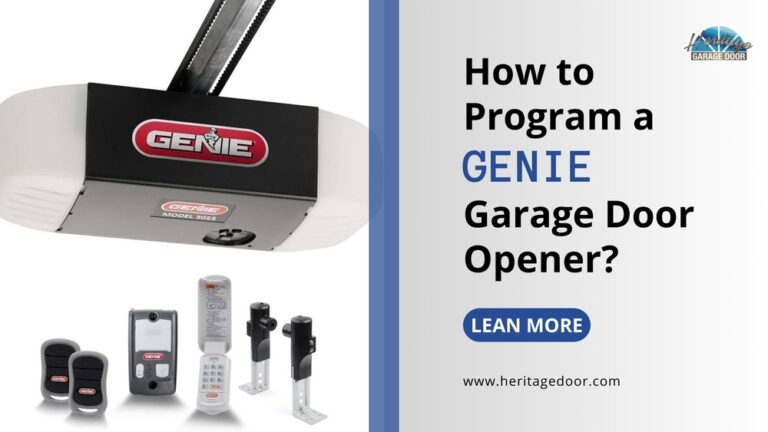
Programming Chamberlain Remotes
Programming a remote lets you open your garage door with one click. The process is simple, but the steps change slightly by model. Here’s a basic guide:
- Find the “Learn” button
- The button is on the back or side of the motor unit.
- Use a ladder to reach it.
- Press and release the “Learn” button
- The indicator light will glow for 30 seconds.
- Press the remote button
- Within 30 seconds, press the main button on your remote.
- The opener’s light will flash or you’ll hear a click.
- Test the remote
- Press the remote button from ground level.
- The door should open or close.
Example:
If your opener has a yellow “Learn” button, press it once, then press the remote button twice within 30 seconds. For a purple button, press the remote button only once.
Here’s a quick reference:
| Learn Button Color | Remote Programming Steps | Remote Compatibility |
|---|---|---|
| Yellow | Press Learn, Press remote 2x | 2011-present remotes |
| Purple | Press Learn, Press remote 1x | 2005-2010 remotes |
| Red/Orange | Press Learn, Press remote 1x | 1997-2004 remotes |
| Green | Press Learn, Press remote 1x | 1993-1996 remotes |
Beginner insight: Many people forget to press the remote button quickly after hitting the “Learn” button. If you wait too long, you’ll have to start again.
Credit: heritagedoor.com
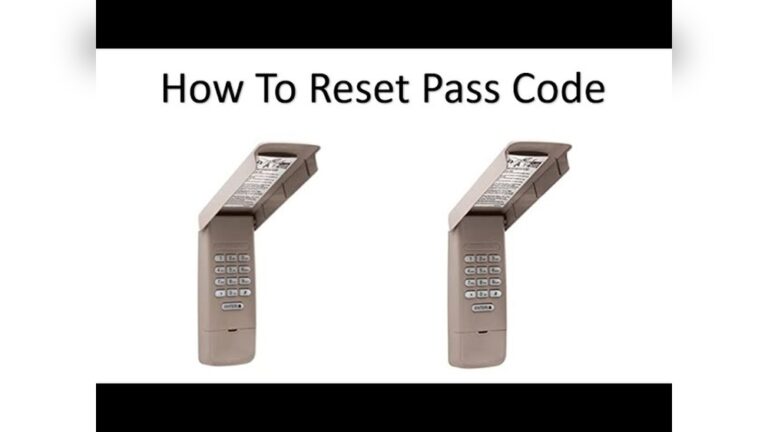
Programming The Keypad
A keypad lets you open the garage door with a PIN code. This is useful if you don’t have your remote. Here’s how to program it:
- Find the “Learn” button
- Same as with remotes.
- Press and release the “Learn” button
- The indicator light turns on.
- Enter your desired PIN on the keypad
- Usually 4 digits.
- Press the “Enter” button
- The opener’s light will blink.
- Test the keypad
- Enter your PIN and press “Enter” to open the door.
Common mistake: Using a simple PIN like 1234. Choose something harder to guess.
Changing The Keypad Pin
If you want to change your code:
- Press and hold the “” and “#” buttons together until the keypad stops blinking.
- Enter your new PIN.
- Press the “Enter” button.
- Follow the programming steps again.
Example:
Suppose you want your PIN to be 4862. Enter that, press “Enter,” and wait for the light.
Non-obvious tip: If your keypad has batteries, weak batteries can cause programming to fail. Always check battery life before starting.
Connecting To Wi-fi And Smartphone Apps
Many Chamberlain openers now connect to Wi-Fi. This lets you:
- Open and close the garage door from your phone
- Get alerts if the door is left open
- Share access with family
The main app is myQ. To connect:
- Download the myQ app
- Available for iOS and Android.
- Create an account
- Follow the prompts.
- Press the Wi-Fi Learn button on the opener
- It’s usually separate from the regular “Learn” button.
- Connect your phone
- Follow app instructions to join your opener’s Wi-Fi signal.
- Enter your home Wi-Fi password
- The opener connects to your network.
- Test the app
- Try opening or closing the door from your phone.
Practical example:
If you have a Chamberlain B970, press the Wi-Fi button until the LED flashes, then use the myQ app to connect.
Data point:
About 60% of new Chamberlain openers sold since 2019 have Wi-Fi built in.
Erasing Old Remotes And Codes
Sometimes you need to remove old remotes or reset your codes. This is important if:
- You lost a remote
- You moved into a new house
- You want to change security codes
To erase all remotes:
- Hold the “Learn” button for 6–10 seconds
- The indicator light goes out.
- All programmed remotes and keypads are deleted
- You must reprogram any devices you want to use.
Beginner tip: Always erase codes when you buy a house with a Chamberlain opener. The old owner’s remotes may still work.
Troubleshooting Programming Issues
Programming doesn’t always go smoothly. Here are common problems and fixes:
- Remote doesn’t work: Check batteries, try reprogramming, or use a compatible remote.
- Keypad won’t program: Check battery, clear previous codes, follow steps carefully.
- Wi-Fi won’t connect: Move your router closer, check signal strength, update app.
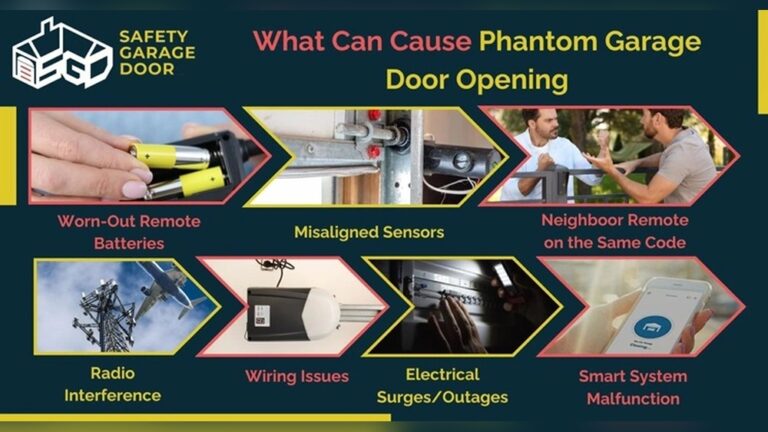
- Door opens/closes randomly: Erase all codes, program remotes again.
Example Scenario
Suppose you try programming a remote and the light doesn’t flash. First, check if you pressed the “Learn” button correctly. Then, try a fresh battery in the remote. If it still fails, look up your model number and verify remote compatibility.
Non-obvious insight: Sometimes LED bulbs in the opener cause interference. Switch to a Chamberlain-approved bulb for better results.
Credit: support.chamberlaingroup.com
Safety And Security Tips
Garage door openers are powerful. Follow these tips to stay safe:
- Never share your PIN with strangers.
- Check safety sensors regularly. They stop the door if something is in the way.
- Don’t let children play with remotes or keypads.
- Keep remotes out of sight in your car.
Data point:
Chamberlain openers use “rolling code” technology. This means the code changes every time you use the remote, making it harder for thieves to copy.
Maintaining Your Chamberlain Opener
Programming is only part of keeping your opener running well. Regular maintenance includes:
- Lubricating moving parts every 6 months
- Checking alignment of safety sensors
- Replacing remote batteries once a year
- Updating app software for smart models
If you notice strange sounds or slow operation, inspect the motor unit or call a professional.
Pro tip:
Write down your programmed codes and keep them in a safe place.
Compatibility And Upgrade Options
Not all Chamberlain remotes work with every opener. Check compatibility before buying new accessories.
| Opener Model | Remote Type | Keypad Type | Wi-Fi Option |
|---|---|---|---|
| B550 | 953EV | 940EV | Built-in |
| C870 | 953EV | 940EV | Built-in |
| Older (pre-1997) | Remote 61LM | Keypad 977LM | Not available |
If you want smart features, consider upgrading to a newer Chamberlain model with Wi-Fi.
Frequently Asked Questions
How Do I Program A Chamberlain Remote If I Lost The Manual?
Find the “Learn” button on the motor unit. Press it once, then press the remote button within 30 seconds. The opener’s light should blink. If you need more help, visit Chamberlain’s support page.
Can I Use My Old Chamberlain Remote With A New Opener?
It depends on the remote model and the opener’s “Learn” button color. Check compatibility in your opener’s manual or on the Chamberlain website. Newer remotes may not work with older openers.
What Should I Do If My Keypad Stops Working?
Check the battery first. If the keypad still doesn’t work, reset it by holding “*” and “#” together, then reprogram your PIN. If problems continue, buy a replacement keypad.
Is It Safe To Connect My Chamberlain Opener To Wi-fi?
Yes. Chamberlain uses encrypted connections for smart openers. Always use strong passwords and update the myQ app regularly. For more info, check Chamberlain’s official site.
How Many Remotes Can I Program To My Chamberlain Opener?
Most Chamberlain models support up to three remotes and one keypad. Some newer models allow more. Check your manual for exact numbers.
Programming your Chamberlain garage door opener doesn’t need to be hard. With the right steps, you can set up remotes, keypads, and smart features quickly. Remember to check compatibility, use strong codes, and maintain your opener for long-lasting performance. If you run into trouble, Chamberlain’s support is helpful and easy to access.
Whether you’re a beginner or just upgrading your system, this guide makes programming simple and secure.