
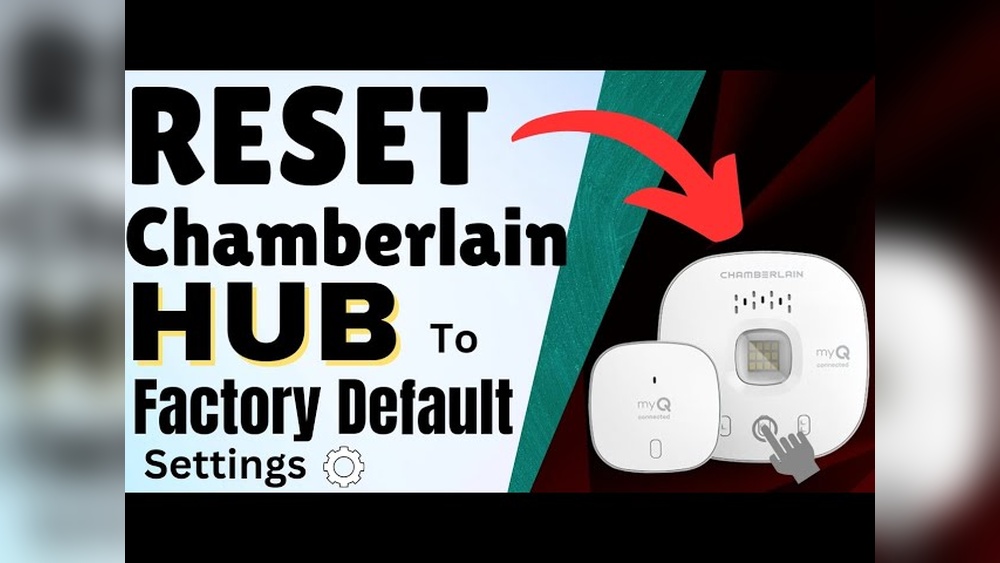
If your MyQ garage door opener isn’t working as expected, a reset can solve many problems. Maybe the remote won’t connect, the app shows errors, or you’re moving and want to clear your device. Resetting is a simple process, but it’s important to do it right.
This guide shows you step-by-step how to reset your MyQ garage door opener, explains different reset types, and covers what to do if things don’t go as planned. Even if you’re a beginner, you’ll feel confident by the end.
Understanding Myq Garage Door Opener Resets
Before you start, it helps to know what resetting means for a MyQ device. There are two main types:
- Soft reset: Disconnects MyQ from Wi-Fi and clears app settings, but keeps remote controls.
- Factory reset: Erases everything—Wi-Fi, remotes, and stored codes. The device returns to its original state.
When should you reset?
- If you move to a new home
- If you want to connect to a new Wi-Fi network
- If you have ongoing app or connection issues
- If you’re giving away or selling your opener
Resetting is safe, but you’ll need to reconnect devices after.
What You Need Before Resetting
A little preparation makes the reset process smooth:
- Ladder: If your opener is ceiling mounted
- MyQ app: Installed on your phone (iOS or Android)
- Wi-Fi password: You’ll need it after reset
- A small tool: Like a pen or paperclip for pressing buttons
Have everything ready before you start. Resetting takes about 5–10 minutes.
Step-by-step: How To Soft Reset Myq Garage Door Opener
A soft reset is often enough to fix minor issues, like connection errors.
- Unplug the garage door opener.
- Wait at least 10 seconds.
- Plug it back in.
- Reconnect to Wi-Fi.
- Open the MyQ app.
- Go to “Device Management.”
- Select your opener and choose “Change Wi-Fi settings.”
- Follow on-screen instructions.
- Enter your Wi-Fi password.
- Let the device connect.
- Test the opener.
- Try opening/closing from the app.
- Check if the remote still works.
This process does not erase remotes or HomeLink connections. It only refreshes your Wi-Fi link and app controls.
Tip: If your Wi-Fi name or password changed, you must do this step.
How To Factory Reset Myq Garage Door Opener
If you want a full reset (for example, selling your home), follow these steps:
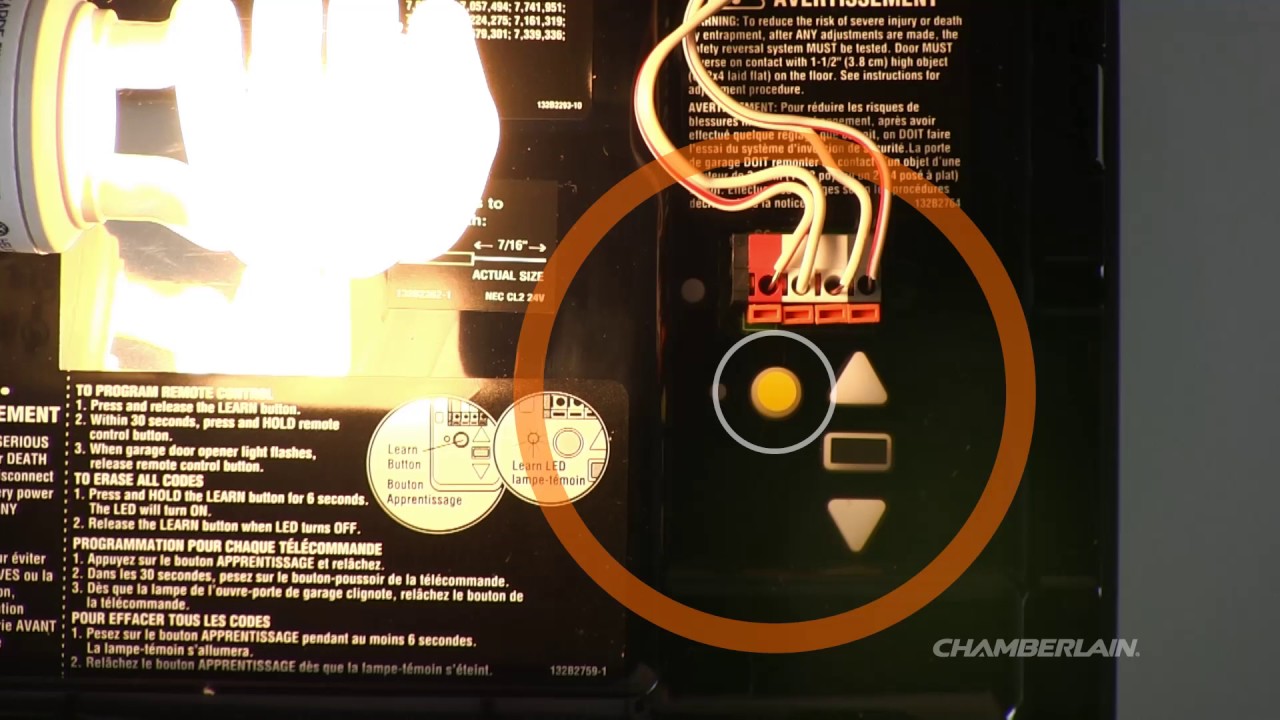
- Find the “Learn” button.
- On most openers, it’s near the light bulb.
- It may be yellow, purple, red, or green.
- Press and hold the Learn button.
- Use a pen or finger.
- Hold for about 6 seconds until the LED light turns off or blinks.
- Wait for confirmation.
- The opener’s lights may flash.
- Remotes and keypads are now erased.
- Reconnect the device.
- Open the MyQ app.
- Add a new device as if setting up for the first time.
- Pair remotes and keypads again.
- Follow your opener’s manual for adding remotes.
Note: A factory reset deletes all Wi-Fi, app, and remote data.
Example Of Myq Factory Reset
Suppose you have a Chamberlain MyQ opener. The Learn button is yellow. Press and hold it for 6 seconds; the LED turns off. Now, all paired devices are erased.
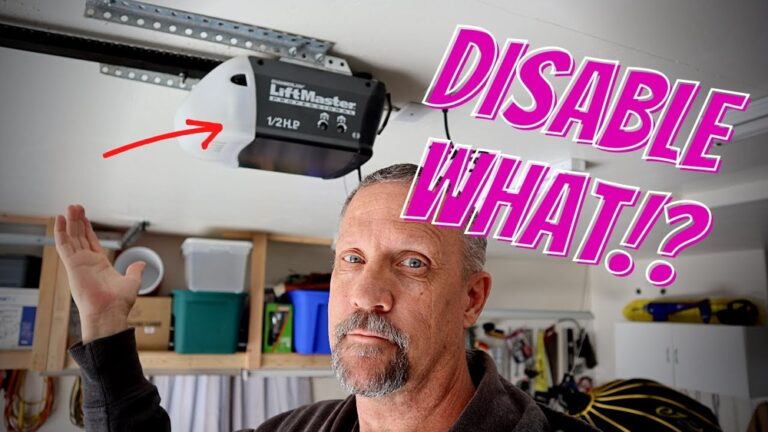
If you have a LiftMaster opener, the process is similar. The Learn button might be purple—hold until the LED flashes.
Credit: www.youtube.com
Myq Reset Methods Compared
Choosing between a soft and factory reset depends on your needs. Here’s a quick comparison:
| Reset Type | What It Does | When to Use | Data Erased? |
|---|---|---|---|
| Soft Reset | Reboots device, reconnects Wi-Fi | Wi-Fi or app connection issues | No |
| Factory Reset | Erases all settings, returns to default | Before selling or major problems | Yes |
Insight: Many users try a factory reset first. In reality, a soft reset solves most basic problems and is much faster.
Common Problems And How To Fix Them
After resetting, some users face common issues:
- Device won’t connect to Wi-Fi.
- Make sure your Wi-Fi is 2.4GHz (MyQ doesn’t support 5GHz).
- Place your router closer to the opener for setup.
- App can’t find the device.
- Double-check that you’re using the correct MyQ app.
- Restart your phone and try again.
- Remotes don’t work after reset.
- You must re-pair each remote after a factory reset.
- LED light does not flash.
- Try holding the Learn button longer.
- Check the opener’s power supply.
If you follow each step slowly, most problems are easy to solve.
.jpeg)
Credit: help.fluenthome.com
How To Reconnect Myq To Wi-fi After Reset
Once you’ve reset your device, you need to connect to your home Wi-Fi. Here’s how:
- Open the MyQ app.
- Log in with your account.
- Tap “Add Device.”
- Choose “Garage Door Opener.”
- Follow the app’s instructions.
- Press the Learn button on the opener.
- Enter your Wi-Fi name and password.
- Wait for confirmation.
- The opener should beep or flash.
- The app will say “Device Added.”
Tip: Use a strong Wi-Fi password. MyQ only connects to 2.4GHz networks.
What To Do After Resetting
Resetting isn’t the last step. Here’s what you should do next:
- Test the door opener.
- Open and close with both the app and remote.
- Update device name in the app.
- Give it a clear name, like “Main Garage.”
- Re-pair HomeLink or Car2U (if used).
- Follow your car’s manual for programming.
- Set up alerts and notifications.
- The MyQ app lets you get alerts when the door opens or closes.
Non-obvious tip: If you use smart home platforms (like Google Home or Alexa), you’ll need to reconnect them after a reset.
Credit: support.chamberlaingroup.com
Troubleshooting Reset Issues
Sometimes, things don’t go as planned. Here’s how to handle common hiccups:
- Device not found in the app:
- Make sure Bluetooth is on.
- Restart your phone and router.
- Can’t press the Learn button:
- Some openers have a cover over the button. Slide or remove it.
- Still connected to old owner’s app:
- Contact Chamberlain support to remove previous owner from device.
Statistic: According to Chamberlain, over 70% of support calls are solved by a simple reset and Wi-Fi reconnect.
Myq Models And Their Reset Process
Not all MyQ openers are the same. Here’s a quick reference:
| Model | Learn Button Color | Reset Button Location | Special Notes |
|---|---|---|---|
| Chamberlain B970 | Yellow | Back, near light | Hold 6 sec for factory reset |
| LiftMaster 8500W | Purple | Side panel | May beep after reset |
| Craftsman 54985 | Red | Bottom panel | Reset clears all HomeLink remotes |
Check your opener’s manual for exact instructions if you have a different model.
Security After Resetting
Resetting your garage opener is also a good security step. Here’s why:
- Old remotes are erased. If someone finds a lost remote, it won’t work after reset.
- Previous owners lose access. Very important if you just moved in.
- Wi-Fi and app connections are refreshed. This prevents unauthorized access.
Pro tip: Change your MyQ app password after resetting. This adds an extra layer of safety.
Key Differences: Myq Vs. Other Garage Door Openers
Some garage openers have different reset methods. Here’s a simple comparison:
| Brand | Reset Process | Mobile App Setup |
|---|---|---|
| MyQ (Chamberlain/LiftMaster/Craftsman) | Learn button, 6-second hold | MyQ App |
| Genie | Up/Down buttons, sequence hold | Aladdin Connect App |
| Sommer | Power cycle, reset button | Somlink App |
This shows MyQ’s process is simple for beginners. Other brands may require more steps.
When To Call For Help
If you’ve tried everything and your MyQ garage door opener still won’t reset, it’s time to get support.
- Call Chamberlain/LiftMaster support.
- Check their official website for troubleshooting guides.
- Ask a local garage door technician.
Non-obvious insight: Sometimes, interference from LED light bulbs or metal objects can block the signal. Try removing them and then reset again.
For official support, visit the Chamberlain Support Center.
Frequently Asked Questions
How Do I Know If My Myq Garage Door Opener Was Reset?
After a successful factory reset, all remotes and the MyQ app lose connection to the opener. The opener’s LED light usually flashes, and you’ll need to set up everything again. Test by trying a remote—if it doesn’t work, the reset succeeded.
Will I Lose My Remote Controls If I Reset Myq?
A soft reset keeps your remotes paired. A factory reset erases all paired remotes and keypads. You must re-pair them by following your opener’s manual after a factory reset.
Can I Reset Myq From The App?
You cannot do a full factory reset from the MyQ app. You must press the physical Learn button on the opener. However, you can delete the device from your account or change Wi-Fi settings via the app.
Why Won’t My Myq Connect After Resetting?
Common reasons include:
- Using a 5GHz Wi-Fi network (MyQ needs 2.4GHz)
- Typing the wrong Wi-Fi password
- Poor signal in the garage
Move your router closer, double-check your password, and make sure your app is updated.
Is Resetting Myq Safe?
Yes, resetting is safe and does not damage your device. It simply clears your data. Always follow the correct steps, and have your remotes and Wi-Fi details ready to set up again.
Resetting your MyQ garage door opener is simple if you follow the right steps. Whether you need a soft reset for small issues or a factory reset for a fresh start, you can do it in minutes. Check your model, use the right button, and remember to reconnect all devices and apps after. If you run into trouble, don’t hesitate to ask for help. With these tips, you’ll get your garage door running smoothly again—securely and reliably.