
If you have a MyQ garage door opener, you know how convenient it is to control your garage door from your phone or smart device. But sometimes, you need to reprogram your MyQ system—maybe you got a new phone, changed Wi-Fi, or want to add or remove users. Reprogramming sounds technical, but it’s actually simple when you follow the right steps. This guide will show you, step by step, how to reprogram your MyQ garage door opener, avoid common mistakes, and keep your system secure.
Why Reprogram Your Myq Garage Door Opener?
There are several reasons you might need to reprogram your opener:
- You changed your Wi-Fi network or password.
- You bought a new smartphone or reset your MyQ app.
- You want to add or remove users.
- Your opener is not responding or acting strangely.
- You moved into a new home with an existing MyQ system.
- You want to clear out old devices for security.
Many people forget that even a simple Wi-Fi change can disconnect your MyQ opener from the app. Reprogramming keeps your system running smoothly and your garage secure.
What To Prepare Before You Start
Before you begin, have these items ready:
- Your MyQ garage door opener (wall unit or ceiling motor)
- The MyQ app (installed on your smartphone)
- Your home Wi-Fi name and password
- A ladder (if your opener is mounted on the ceiling)
- A small pin or paperclip (if your opener has a reset button)
Having everything ready will save time and reduce frustration during the process.
Understanding Myq Garage Door Opener Models
Not all MyQ openers look or work exactly the same. The main types are:
| Model Type | Common Features | Reset Method |
|---|---|---|
| Wall Control Panel | Buttons for programming, light, and lock | Menu navigation or dedicated button |
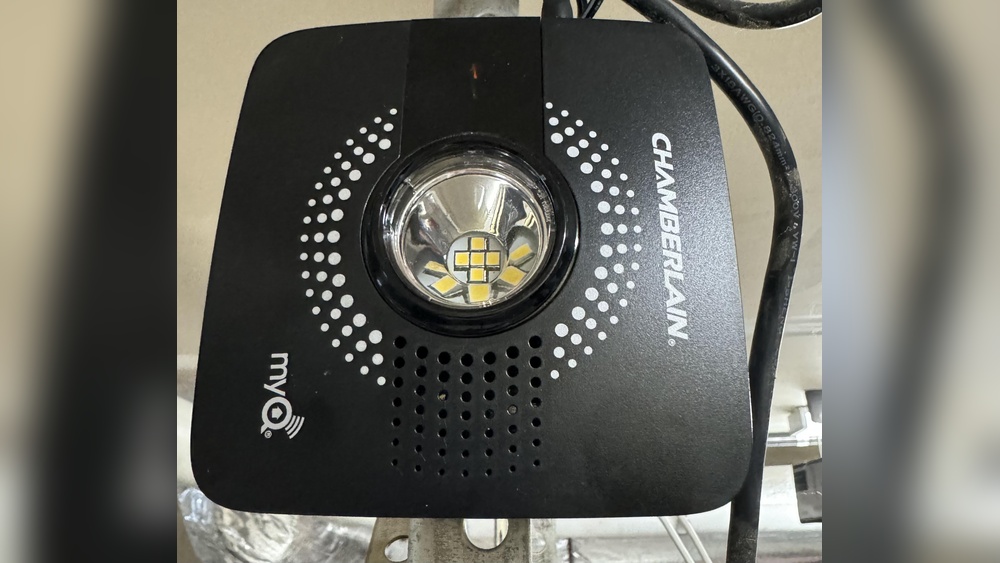
| Ceiling-Mounted Motor Unit | Learn button, LED indicator | Physical button or reset pinhole |
| Smart Hub (Stand-Alone) | Wi-Fi only, connects to existing opener | Reset pinhole or app-based |
Find out which type you have by checking the labels or looking up your model number on the manufacturer’s website.
Step-by-step: How To Reprogram A Myq Garage Door Opener
1. Reset The Myq Garage Door Opener
Most issues require a reset before you can reprogram:
- Locate the “Learn” or “Program” button on your opener. It’s often on the back or side of the motor unit or inside the wall panel.
- Press and hold the “Learn” button for 6–10 seconds. The LED light will turn off or blink, which means all old codes are erased.
- For some Smart Hubs, use a pin to press the reset button for 10 seconds.
Tip: If you’re unsure, check your manual or search your model at the manufacturer’s website.
2. Reconnect To Wi-fi
After resetting, you need to connect your opener to your home Wi-Fi:
- Open the MyQ app on your smartphone.
- Tap “Add Device” or the “+” symbol.
- Select Garage Door Opener and follow the on-screen steps.
- The app will ask you to connect to the opener’s Wi-Fi signal (often called “MyQ-XXX”).
- After connecting, enter your home Wi-Fi name and password.
The LED on your opener should blink or turn solid once connected.
3. Add The Garage Door Opener To The Myq App
- In the app, choose “Garage Door Opener”.
- The app will search for your device.
- When the device appears, select it and name your garage door (e.g., “Home Garage”).
- Test the connection by opening or closing the garage door from the app.
If Everything Works, You’re Reprogrammed!
4. Add Or Remove Additional Users
MyQ lets you share access with family or friends:
- Open the MyQ app and select your garage door.
- Tap the “Share” icon or go to “Users.”
- Enter the email address of the person you want to invite.
- To remove a user, tap on their name and select “Remove.”
Non-obvious tip: Limit sharing to trusted people only—every user can control your garage!
5. Test Your System
After reprogramming, always test:
- Open and close the door with the app.
- Try using any wall buttons or remote controls.
- Check the system’s status notifications.
If anything doesn’t work, repeat the steps or consult the app’s troubleshooting guide.

Credit: www.reddit.com
Troubleshooting Common Problems
Even after following the steps, sometimes things go wrong. Here’s how to fix the most common issues:
| Problem | Possible Cause | Solution |
|---|---|---|
| Device not found in app | Poor Wi-Fi signal or device out of range | Move your router closer or use a Wi-Fi extender |
| Can’t connect to Wi-Fi | Wrong password or incompatible network | Check password; use 2.4GHz Wi-Fi, not 5GHz |
| App shows “offline” | Power loss or firmware issue | Restart opener, check power, update app |
| Door won’t open/close from app | Obstruction or safety sensor problem | Clear obstructions, check sensors alignment |
Example: John moved his router to a new room. After that, his MyQ app couldn’t find the garage opener. He added a Wi-Fi extender in the garage, reprogrammed the device, and solved the problem.
Security: Keeping Your Myq System Safe
Many people don’t realize that reprogramming is also a security step. Here’s why:
- Old shared users (like previous owners) could still access your garage.
- Hacked Wi-Fi can give attackers access to your home.
- Regularly resetting and updating your MyQ system keeps your home safer.
Tips for strong security:
- Change your MyQ app password every 6–12 months.
- Only share access with trusted people.
- Use strong, unique Wi-Fi passwords.
- Remove old or unknown devices from your MyQ account.
Credit: support.chamberlaingroup.com
Real-world Data: Myq Opener Usage And Problems
A recent survey of smart garage door opener users showed:
- 62% of problems are due to Wi-Fi changes or weak signals.
- 25% forget their MyQ app password after a phone upgrade.
- 13% experience issues from not removing old users.
This shows how important it is to reprogram after any network or device change.
Avoiding Common Beginner Mistakes
Beginners often make these mistakes:
- Not resetting before adding a new phone or user. This causes double connections and errors.
- Skipping Wi-Fi checks. If your router uses 5GHz only, your opener won’t connect (MyQ needs 2.4GHz).
- Forgetting to test after programming—always open/close the door to confirm.
- Ignoring firmware updates. Check the MyQ app for updates that fix bugs and improve security.
- Using simple passwords for Wi-Fi or MyQ accounts.
Pro tip: Write down your Wi-Fi and MyQ passwords in a safe place before starting.
What To Do If You Lose Access To Your Myq Opener
If you’re completely locked out:
- Reset the opener using the “Learn” or “Reset” button.
- Delete and reinstall the MyQ app.
- Register as a new user in the app.
- If your model is registered to another owner, contact MyQ customer support.
You may need proof of ownership to reclaim your device.
How To Reprogram For A New Homeowner
If you just bought a house with a MyQ opener:
- Reset the garage door opener (hold the “Learn” button for 10 seconds).
- Delete all old users in the MyQ app.
- Set up the opener with your own MyQ account and Wi-Fi.
- Test all remotes and wall controls.
- Update the app to the latest version.
Important: This keeps previous owners from accessing your garage.
Credit: support.chamberlaingroup.com
Myq And Other Smart Home Devices
MyQ openers can work with other smart home systems, such as Amazon Alexa, Google Assistant, or Apple HomeKit. After reprogramming:
- Open the MyQ app and go to “Works With” or “Partner Integrations.”
- Follow the instructions to connect with your smart home system.
This lets you open or close your garage using voice commands or routines.
Example: You can say, “Alexa, open the garage,” after linking MyQ with Alexa.
When To Call For Professional Help
Sometimes, DIY steps aren’t enough. Call a professional if:
- The opener won’t reset, even after following the steps.
- The motor unit makes strange noises or doesn’t respond.
- You see error lights or codes you can’t clear.
- You have an older opener (pre-2012) that doesn’t support MyQ.
A garage door technician can check the wiring, sensors, and electronics.
Useful Resources
For more information and detailed model guides, visit the official Chamberlain MyQ Support website.
Frequently Asked Questions
How Do I Find The “learn” Button On My Myq Opener?
The “Learn” button is usually on the back or side of the motor unit, often near the antenna wire. It can be yellow, purple, red, or green. Some wall panels also have a “Learn” or “Program” button in the menu.
Can I Reprogram Myq Without A Ladder?
If your opener is wall-mounted or has an accessible panel, you may not need a ladder. For ceiling-mounted units, a ladder is usually necessary to reach the reset button safely.
What Wi-fi Network Does Myq Require?
MyQ openers need a 2.4GHz Wi-Fi network. Most home routers support both 2.4GHz and 5GHz, but MyQ does not work with 5GHz. Check your router’s settings if you have trouble connecting.
How Many Users Can I Share My Myq Opener With?
You can share access with up to five users on most MyQ accounts. For more users or business access, you may need a paid upgrade or a business plan.
What Should I Do If My Myq Opener Stops Working After A Power Outage?
After a power outage, unplug the opener for 30 seconds, then plug it back in. Check your Wi-Fi and restart your router if needed. If the problem continues, reset and reprogram your MyQ opener.
Reprogramming your MyQ garage door opener keeps your home secure and your smart features working smoothly. With these clear steps and practical tips, you’ll have your garage opener ready in minutes, even if you’re a beginner.