
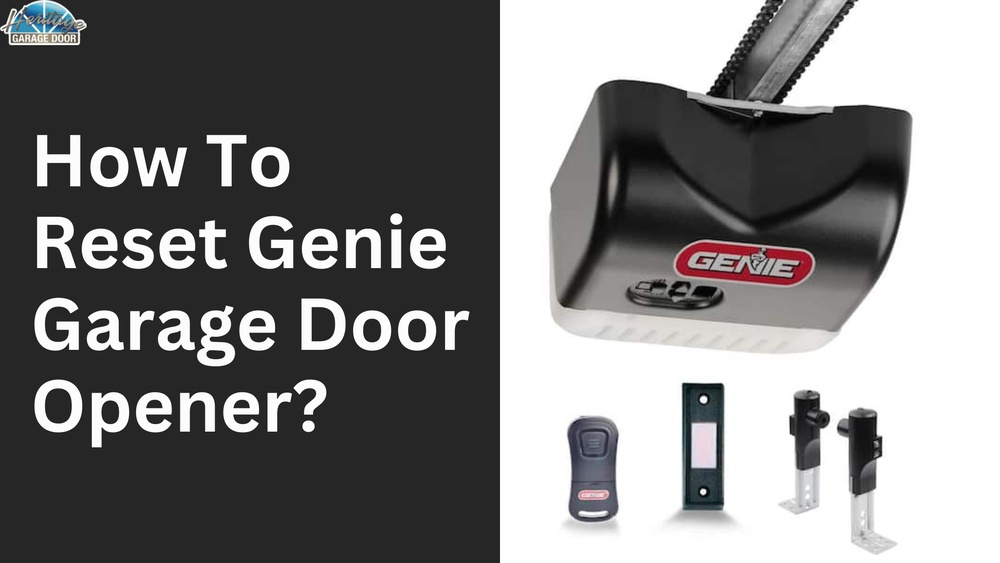
Resetting a garage door opener sounds complicated, but it’s actually simple once you know the steps. Many homeowners struggle with their Genie garage door opener when it stops working or needs reprogramming. If you’re new to garage door openers, this guide will walk you through the process in clear, easy language. You’ll learn why resetting matters, how to do it, and what mistakes to avoid. By the end, you’ll feel confident to fix your Genie opener without calling a technician.
Why Reset Your Genie Garage Door Opener?
A reset is needed when your Genie opener:
- Stops responding to remote controls
- Shows blinking lights or error codes
- Won’t open or close the door properly
- Needs to be paired with new remotes
- Has been affected by power outages
Resetting clears the opener’s memory and solves many common issues. Think of it like rebooting your computer. Most problems go away after a reset, and you can reprogram remotes easily.
Understanding Genie Garage Door Opener Models
Genie makes several garage door opener models. The reset steps are similar, but a few details depend on your specific model.
Common Genie models:
- Chain Drive: Strong and reliable, common in older homes
- Belt Drive: Quiet operation, ideal for attached garages
- Screw Drive: Fewer moving parts, good for heavy doors
- Smart Openers: Connect to Wi-Fi and have extra features
Older Genie openers use physical buttons, while newer models may have touchpads or smart controls.
Here’s a comparison of Genie opener types:
| Model Type | Reset Method | Noise Level | Key Feature |
|---|---|---|---|
| Chain Drive | Button Press | High | Durability |
| Belt Drive | Button Press | Low | Quiet Operation |
| Screw Drive | Button Press | Medium | Heavy Doors |
| Smart Opener | App/Touchpad | Low | Wi-Fi Control |
Before you start, find your opener’s model number. It’s usually on a sticker near the motor unit or on the back panel. Knowing your model helps you follow the right reset steps.
Safety First: Preparing For The Reset
Garage doors are heavy and can be dangerous. Always take these precautions:
- Disconnect the opener from power before touching wires.
- Keep children and pets away from the garage during reset.
- Wear gloves if you need to move the door manually.
If your opener is connected to Wi-Fi, turn off your router for extra safety.
Step-by-step: How To Reset Genie Garage Door Opener
Resetting your Genie opener involves clearing the memory and programming remotes again. Here’s how to do it, step by step:
1. Locate The ‘learn’ Or ‘program’ Button
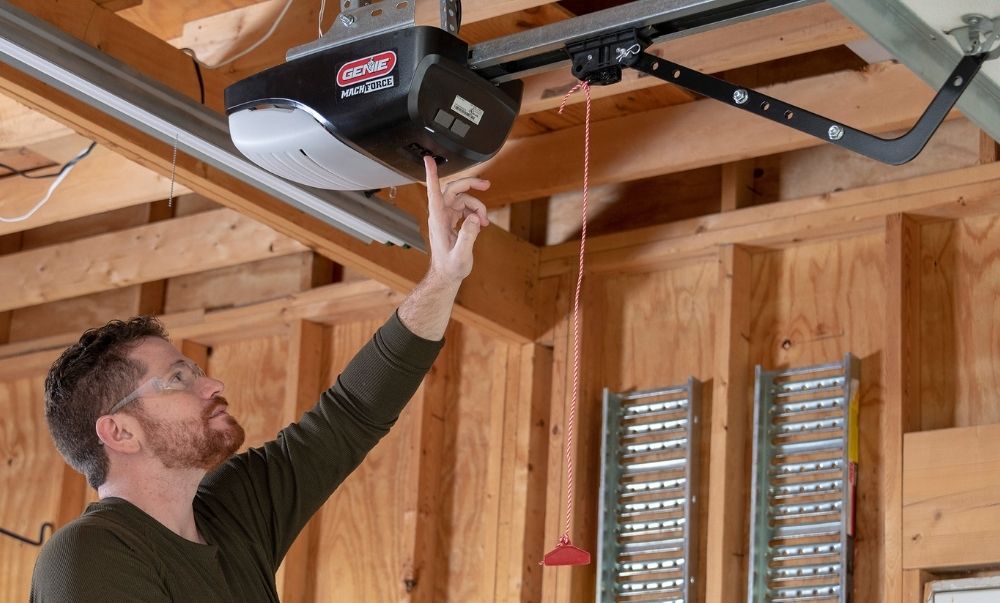
- Find the Learn button on the motor unit. It’s usually under a light cover or near the antenna wire.
- The button may be labeled “Learn,” “Program,” or have a small LED light.
2. Press And Hold The Button
- Press and hold the Learn/Program button for about 10 seconds.
- The LED light will turn off or blink, showing that the memory is cleared.
- Release the button after the light changes.
3. Wait For The System To Reset
- Wait 30–60 seconds after releasing the button.
- The opener will forget all remote codes and settings.
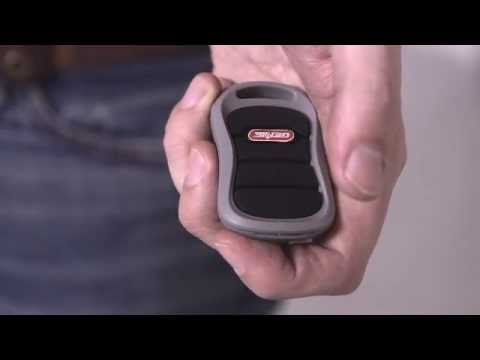
4. Reprogram Remotes
- Press the Learn button once (don’t hold).
- Within 30 seconds, press the button on your remote control.
- The LED light on the opener should blink or turn on, confirming the remote is programmed.
Repeat this step for each remote you want to use.
5. Test The Door
- Press your remote to see if the door opens and closes.
- If it works, your opener is reset and ready.
- If not, repeat the programming steps.
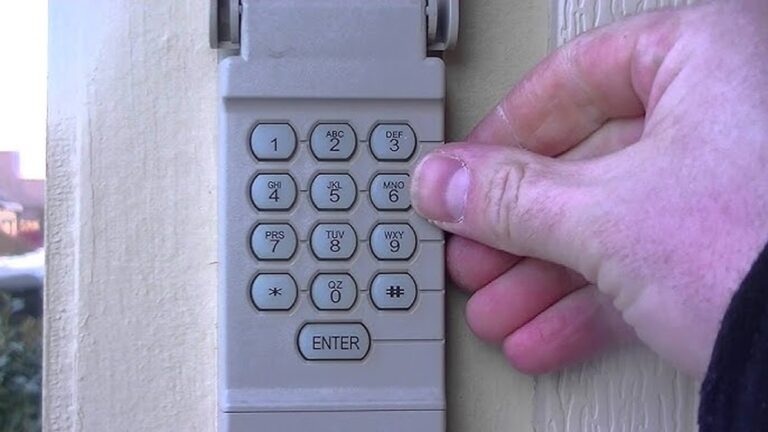
Some newer Genie models may use a touchpad or the Genie app. Follow the on-screen instructions if your opener supports Wi-Fi.
Example: Resetting A Genie Chain Drive Opener
Suppose you have a Genie Chain Drive 2033. Here’s how you reset it:
- Unplug the opener for safety.
- Open the light cover and find the Learn button.
- Hold the button for 10 seconds until the LED turns off.
- Plug the opener back in.
- Press the Learn button again, then press your remote’s button.
- The LED flashes, showing the remote is paired.
Most Genie openers follow similar steps. If you have an older model, the button may be behind a small panel.
Common Problems And Solutions
Sometimes, resetting doesn’t fix everything. Here are common issues and what to do:
- Remote won’t program: Make sure you press the buttons in the right order. Try changing the remote’s battery.
- Door doesn’t move: Check if the opener is plugged in and the door is not jammed.
- Blinking lights: This may mean a safety sensor is blocked. Clean the sensor and try again.
- Wi-Fi models: If your smart opener won’t reset, restart your router and try the reset again.
If these steps don’t work, consult the Genie manual or call support.
Genie Opener Reset Vs. Other Brands
Genie openers are known for easy resets, but how do they compare to other brands? Here’s a simple comparison:
| Brand | Reset Method | Time Required | Remote Reprogramming |
|---|---|---|---|
| Genie | Button Hold | 1–2 min | Easy |
| Chamberlain | Button Press | 2–3 min | Easy |
| LiftMaster | Button Press | 2–4 min | Moderate |
| Craftsman | Switch/Panel | 3–5 min | Moderate |
Genie’s method is fast and simple for beginners. Other brands may have extra steps or require more time.
Mistakes Beginners Make When Resetting
Many first-time users make these mistakes:
- Forgetting to unplug the opener before starting
- Not holding the Learn/Program button long enough
- Trying to reprogram remotes too quickly
- Not checking if the remote batteries are fresh
- Ignoring blinking lights or error codes
Avoid these mistakes for a smoother reset. Always read the manual for your specific model.
Practical Tips For A Successful Reset
Here are some useful tips that beginners often miss:
- Write down your opener’s model number before starting. This saves time if you need help.
- If you have multiple remotes, reset and program them one at a time.
- Clean the safety sensors. Dust or dirt can cause problems even after a reset.
- If your opener is connected to a smart home system, unlink and relink it after resetting.
Most resets take less than five minutes if you follow these steps. If you’re stuck, Genie’s support website has videos and guides.
When To Call A Professional
While most resets are easy, you should call a professional if:
- The door won’t move after resetting
- You see error codes that won’t clear
- The opener makes strange noises
- Wiring looks damaged or burned
Professional help can prevent injury and protect your door. Don’t risk fixing electrical problems yourself.
How Often Should You Reset?
You don’t need to reset your Genie opener often. Typical reasons include:
- After replacing remotes
- When moving into a new house
- Following a power surge or outage
- If the opener acts strangely
Most people reset once every few years, or when they buy new remotes.
Credit: store.geniecompany.com
Data: Genie Opener Reliability
Genie openers are popular for their reliability. According to a 2023 survey by the International Door Association:
- Genie openers have a satisfaction rate of 93% among homeowners
- Average lifespan is 8–12 years with regular maintenance
- Less than 10% of users report needing to reset more than once per year
These numbers show Genie openers are dependable and easy to maintain.
Advanced Reset: Smart Genie Openers
If you have a smart Genie opener, the reset steps include app controls:
- Open the Genie app and go to settings
- Find the “Factory Reset” option
- Follow prompts to reset the opener and clear Wi-Fi settings
- Reconnect to your home network and reprogram remotes
Smart openers may need firmware updates. Always check the app for update notifications.
Credit: www.youtube.com
Real-life Example: Solving A Remote Issue
Imagine your Genie opener stopped working after a storm. The remote won’t open the door, and the light blinks. Here’s what to do:
- Unplug the opener for 30 seconds
- Plug it back in
- Hold the Learn button for 10 seconds
- Program the remote as described above
In most cases, this fixes the problem. If not, try a new battery or clean the sensors.
Genie Support And Resources
If you need more help, Genie’s official website offers:
- Video tutorials
- Troubleshooting guides
- Live chat with technicians
Visit Genie Company for official support.

Credit: www.youtube.com
Frequently Asked Questions
How Do I Find The Learn Button On My Genie Opener?
The Learn button is usually under the light cover or near the antenna. It’s often labeled “Learn” or “Program.” If you can’t find it, check your manual or the Genie website.
Can I Reset My Genie Opener Without Unplugging It?
Yes, but unplugging adds safety. It prevents electrical shocks if you touch wires. Always unplug if you need to open panels or touch internal parts.
Why Does My Remote Still Not Work After Resetting?
Check the remote battery, follow steps carefully, and clean sensors. Some remotes may need extra programming steps. Try again or use a different remote.
How Many Remotes Can I Program After A Reset?
Most Genie openers support up to 7 remotes. Program each one after resetting. Smart models may allow more with app control.
What Do Blinking Lights Mean After A Reset?
Blinking lights often show sensor problems or incomplete programming. Clean sensors, check door tracks, and repeat the steps. If lights keep blinking, consult your manual.
Resetting your Genie garage door opener is simple and safe when you follow these steps. Whether you have a basic model or a smart opener, you can solve most issues in minutes. Remember, safety comes first. Use the tips above to avoid mistakes, and reach out to Genie support if needed.
With a little patience, your garage door will be running smoothly again.